Sending invoices by SMS from the dashboard
When you create an invoice in the Moyasar dashboard, you can enter your customer's mobile number and Moyasar sends them the invoice link by SMS.
Before you start
The SMS is sent through your own SMS provider account (Msegat). Contact Moyasar support to set up your SMS credentials. Until they are set up, the Customer mobile number field does not appear in the dashboard.
Send an invoice by SMS
- Go to https://dashboard.moyasar.com/ and log in.
- Click Invoices in the side menu.
- Click Create Invoice.
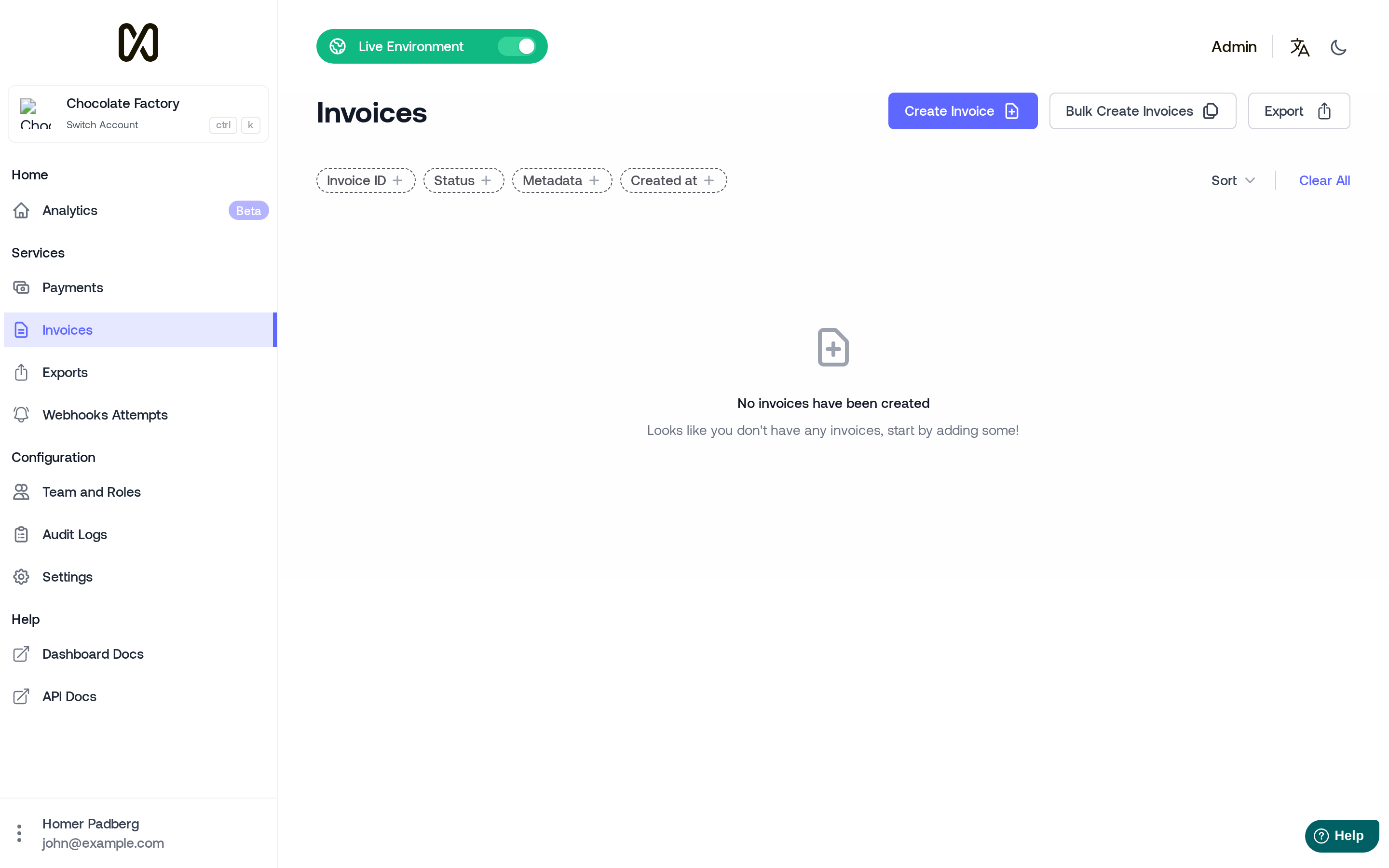
- Fill in the Amount and Description, and optionally the Expiry date.
- Enter the customer's Saudi mobile number in Customer mobile number.
- Click Submit.
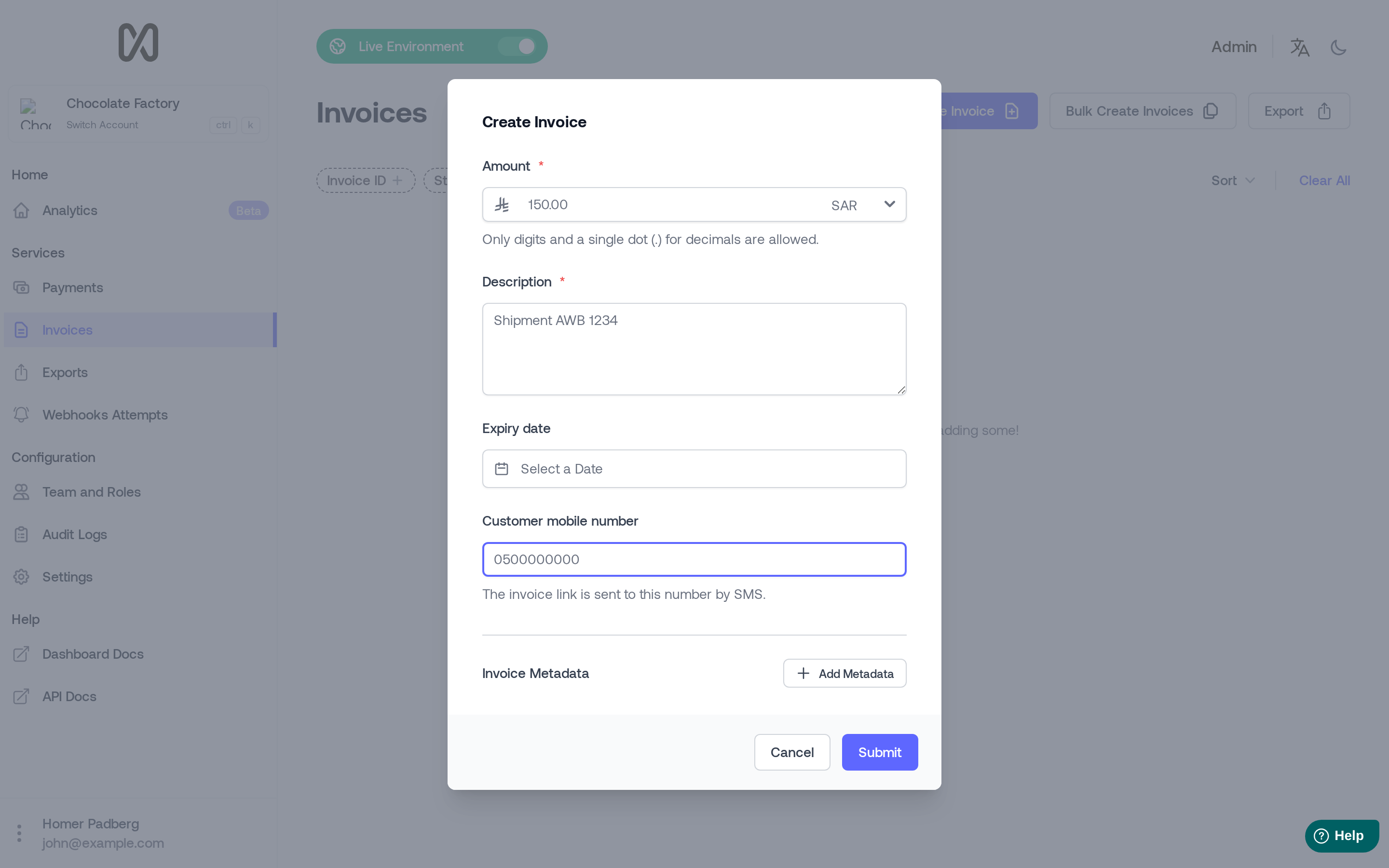
The invoice is created and its link is sent to the customer by SMS.
Mobile number format
Enter a Saudi mobile number in any of these formats:
| Format | Example |
|---|---|
| Local | 0500000000 |
| International | +966500000000 |
| International | 00966500000000 |
| Without prefix | 966500000000 |
Spaces are ignored. Leave the field empty to create the invoice without sending an SMS.
What the customer receives
The SMS comes from your sender name. It contains your business name, the invoice amount and the invoice link, in the invoice language of your account (Arabic or English).
If the SMS fails
- If the SMS cannot be delivered, the invoice is not created and the dashboard shows the error
SMS could not be deliveredwith the reason (for example insufficient balance or an invalid sender name). Fix the issue and submit again. - If the delivery cannot be confirmed (for example the SMS provider does not answer in time), the invoice is kept and the error shows its id. Check the invoice in the Invoices page before submitting again, to avoid creating a duplicate.
Using the API
To send the invoice link by SMS from your own system, see Creating invoices and the Create Invoice API.