Configuration
Before accepting payments, you must configure your API keys and webhook settings in WooCommerce.
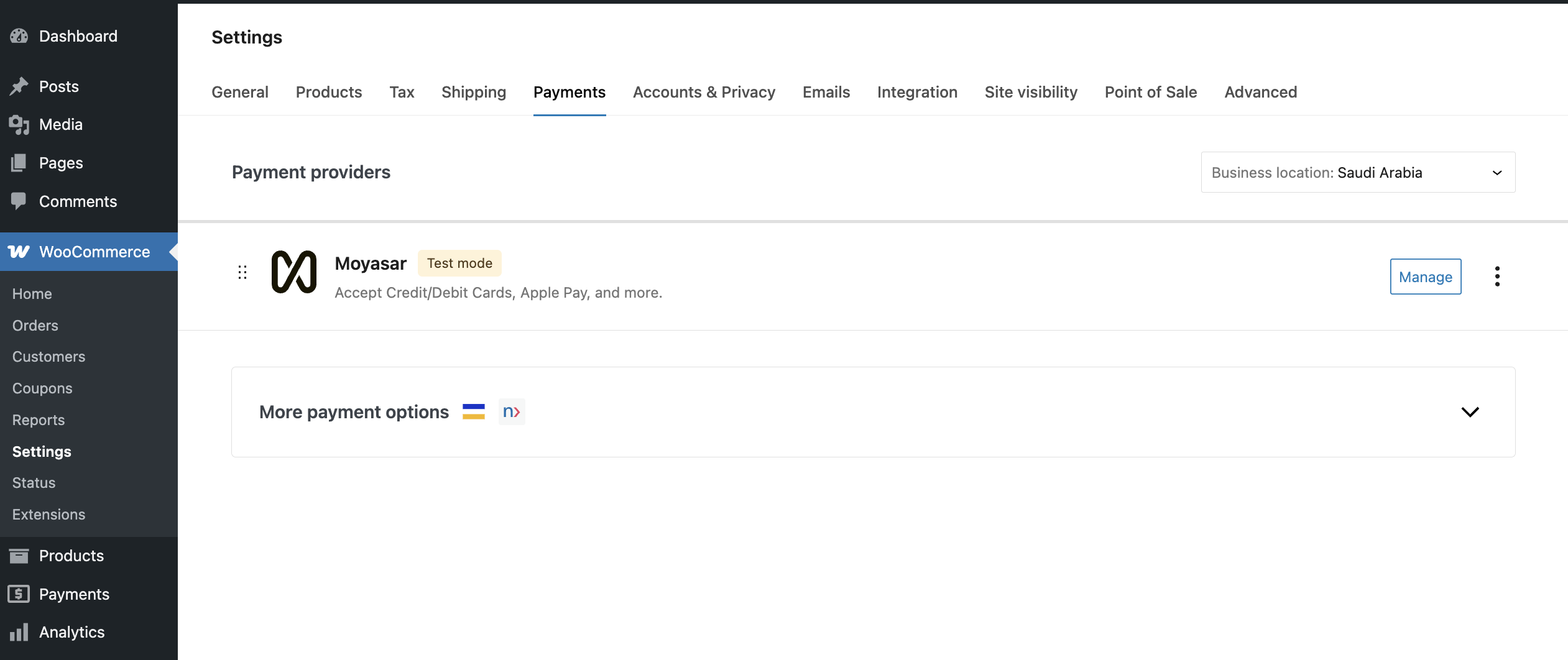
Access Settings
- Go to WooCommerce -> Settings.
- Click on the Payments tab.
- Locate Moyasar and click Manage.
API Keys
You need to enter your API keys to authenticate with Moyasar.
-
Log in to your Moyasar Dashboard.
-
Go to Settings -> API Keys.
-
Copy your Publishable Key and Secret Key.
-
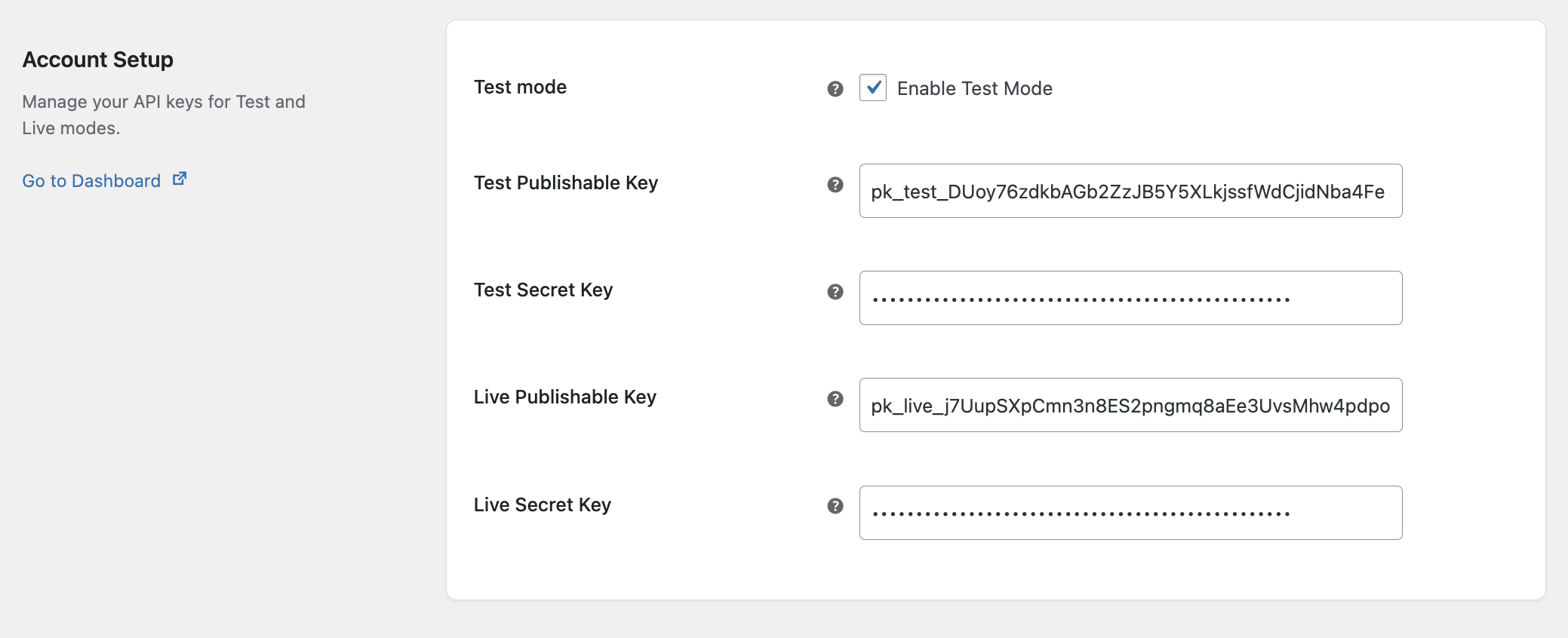
In WooCommerce:
- Test Mode: Enable this checkbox to use the Test Environment.
- Test Secret Key: Paste your
sk_test_...key. - Test Publishable Key: Paste your
pk_test_...key. - Live Secret Key: Paste your
sk_live_...key. - Live Publishable Key: Paste your
pk_live_...key.
-
Click Save changes.
Webhooks
Webhooks are crucial for receiving payment updates (e.g., successful payments, refunds) asynchronously. This ensures order statuses are updated even if the user closes their browser early.
- Log in to your Moyasar Dashboard.
- Go to Settings -> Webhooks.
- Click Add Webhook.
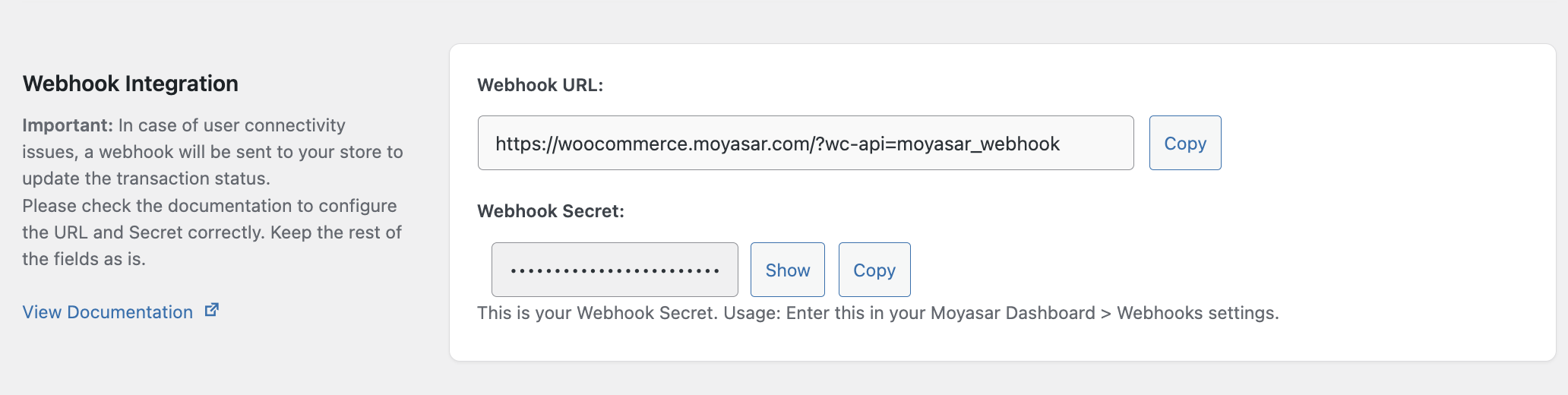
- Webhook Endpoint: Copy the "Webhook URL" and "Secret" displayed in your WooCommerce Moyasar settings.
- It looks like:
https://your-store.com?wc-api=moyasar_webhook
- It looks like:
- Events: Select All Events & Post Request.
- Click Save.
Order Status Configuration
You can customize how WooCommerce tracks orders based on payment events. This allows you to match your store's fulfillment workflow.
Options:
- Success Status: The status to apply when a payment is successful (Default: Processing).
- Failed Status: The status to apply when a payment fails (Default: Failed).
- Refund Status: The status to apply when a refund is processed via Moyasar (Default: Refunded).
- Void Status: The status to apply when an authorization is voided (Default: Cancelled).