Configure Apple Pay Certificates
This guide explains how to configure the Apple Pay payment processing certificate via your Moyasar dashboard. Apple Pay requires a payment processing certificate to securely process payments within your iOS app or on your website.
Prerequisites
- An Apple Developer Account
- A CSR file from Moyasar
- Access to the Apple Developer portal
Configuration Flow
- Step 1: Request the CSR file from the Moyasar dashboard
- Step 2: Generate the payment processing certificate in the Apple Developer portal
- Step 3: Upload the certificate back to the Moyasar dashboard
The Apple Pay - Certificate page lists all your certificates. Click Add Certificate to start a new certificate request, then follow the steps on the New Certificate page: download the CSR, sign it in the Apple Developer portal, and upload the signed certificate back. See the Apple Developer Account guide for a detailed walkthrough.

Certificate Status
Each Apple Pay certificate shows one of these statuses:
- Not configured: No certificate has been uploaded yet
- Pending Upload: A CSR was generated and is waiting for the signed certificate
- Activated: Certificate is successfully configured and can process payments
Managing Multiple Certificates
Your account can hold more than one Apple Pay certificate, and all Activated certificates can process payments at the same time. Use this to renew a certificate before it expires without any downtime, or to keep a separate certificate for each Apple merchant ID you operate.
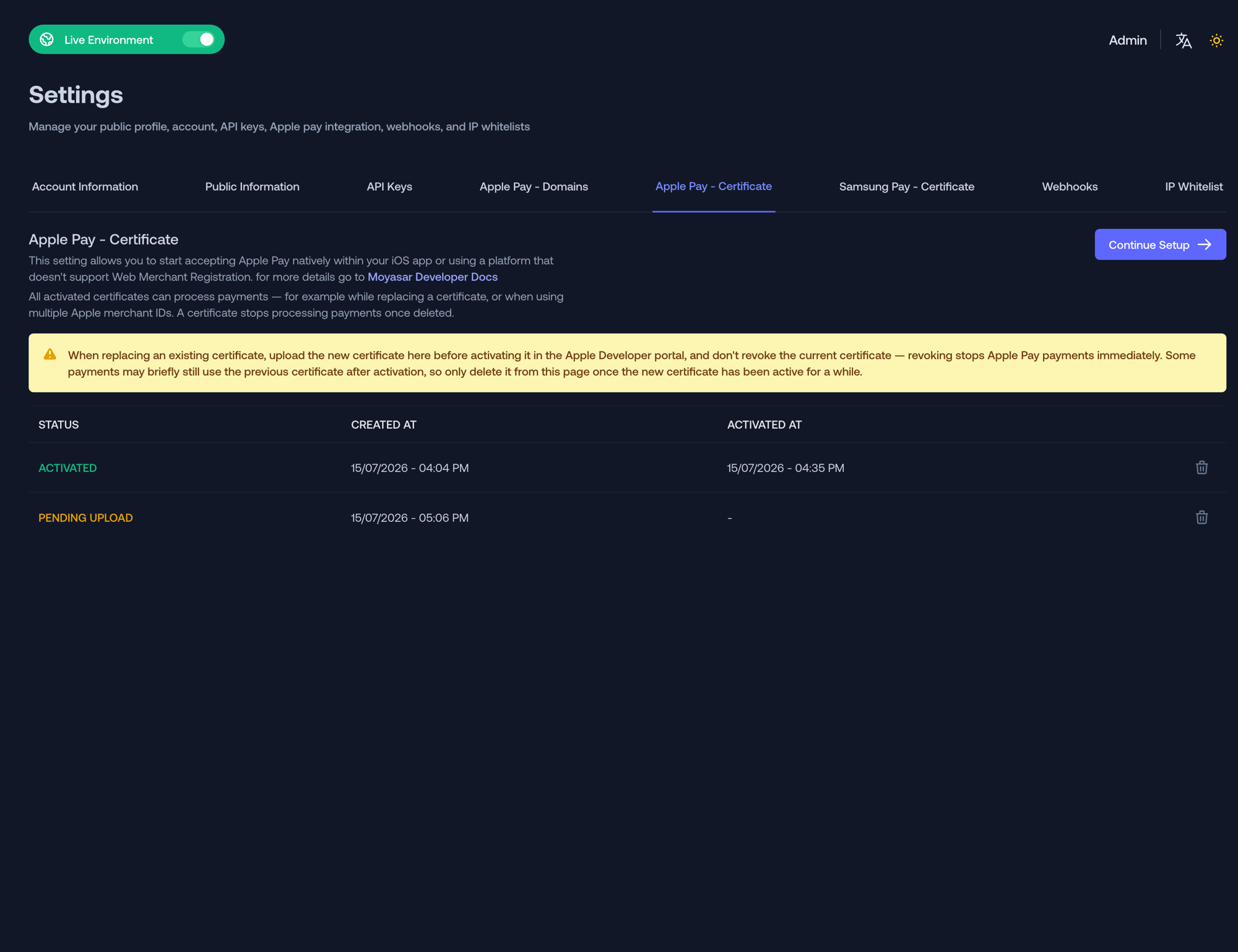
- A request in progress can be resumed with Continue Setup or discarded with Cancel Request
- A certificate can be deleted using the trash icon in the list — once deleted, payments encrypted with it can no longer be processed
Renewing a Certificate
To replace an existing certificate without interrupting payments:
- Click Add Certificate and complete the steps to upload the new certificate. Your current certificate keeps processing payments the whole time — do not revoke it in the Apple Developer portal, as revoking stops Apple Pay payments immediately.
- Once the new certificate shows as Activated in the dashboard, activate it in the Apple Developer portal.
- Delete the old certificate only after the new one has been active for a while — some payments may briefly still use it right after the switch.
- Keep track of certificate expiration dates — Apple Pay certificates expire every 25 months
- Store downloaded certificates securely
- Test the payment flow after any certificate changes